MTrans Online User Guide 日本語
- Login
- User privileges
- MTrans for Office page
- MTrans for Phrase TMS page
- MTrans for Trados page
- MTrans for Crowdin page
- Translation function (MTrans Web)
- Glossary management function
- Prompt and replacement condition set management function
- My account settings
- User management / User group management functions
- Contract/license management function
- Usage History
- Integrations
- FAQ
- Revision history
Login
You can log in to MTrans Online using one of the following methods:
- E-mail address and password
- Single Sign-On (SSO)
You choose the login method when you first sign the contract with us. Single Sign-On (SSO) means that you can log in with an account for a third-party service that you already have. Single Sign-On (SSO) currently supports Microsoft Azure Active Directory. For customers who log in to MTrans Online using Single Sign-On (SSO), some display items and available functions are different. For details, refer to the description of each function.
For customers logging in using e-mail address and password
To log in to MTrans Online for the first time, you will need the user name and temporary password provided in your invitation email. Since the temporary password has a validity period, you need to log in from https://mtrans.online/login during that period and change your password in the initial setting. Once you have successfully logged in, you can log in automatically from https://mtrans.online. If you fail to login after the expiration date, please contact your user manager to resend the invitation.
For customers logging in using Single Sign-On (SSO)
To log in to MTrans Online using Single Sign-On (SSO), click the "Single Sign-On (SSO)" button on https://mtrans.online/login, enter your "App Client ID", and click  . Alternatively, access your customer-specific login URL (https://mtrans.online/?clientid=***). The login screen of your linked service will appear, so log in with your linked service account. Once you have successfully logged in, you can log in automatically from https://mtrans.online. Please contact your user manager for your "App Client ID" or customer-specific login URL.
If you forget your password
Customers who login with their e-mail address and password can reset their password on the login screen. Open https://mtrans.online/login and click on "Forgot your password?" and enter your e-mail address, then click on the "Send a new password setting e-mail" button. Enter the code sent to your e-mail address and your new password (which must be at least 8 characters long and contain at least one number, uppercase and lowercase letters, and special symbol), then press the "Reset" button. You can now log in with your e-mail address and new password.
Customers who log in using Single Sign-On (SSO) cannot reset their password from "Forgot your password?" on the login screen. You need to check this with the linked service.
Logout
To log out of MTrans Online, click on  in the lower left corner of the sidebar.
User privileges
MTrans Online has two types of user privileges: User manager and Data manager (formerly Translation manager).
User manager
- User managers can manage users and user groups. For more information, see User management function / User group management function.
- User managers can view the contract status of MTrans products and assign licenses. For more information, see Contract/license management function.
Data manager (formerly Translation manager)
- Data managers can make glossaries accessible to all users or a specific user group, and edit them. For more information, see Glossary management function.
- Data managers can make MT prompt sets, auto post-editing condition sets, and AI prompt sets accessible to all users or a specific user group, and edit them. For more information, see MT prompt set / auto post-editing condition set / AI prompt set management functions.
These user privileges can be granted by a user with the user manager privilege. For more information about granting privileges, see Changing privileges in User management function.
MTrans for Office page
To open the MTrans for Office page, click  (Settings icon) in the sidebar, then click "for Office" under "MTrans". You can download the MTrans for Office installer and check the initial setting steps.
For customers who signed up for MTrans products before March 31, 2025
You can use the translation function (MTrans Web) by clicking "MTrans Web" in the upper right corner of the screen.
For more information about this function, see Separate sheet.

MTrans for Phrase TMS page
To open the MTrans for Phrase TMS page, click (Settings icon), then click "for Phrase TMS" under "MTrans". This page will appear only if your contract with MTrans for Phrase TMS is in progress.
API key
An API key is required to use the functions of MTrans for Phrase TMS. To get the API key, open the MTrans for Phrase TMS settings screen and click the "Issue" button.
MTrans for Trados page
To open the MTrans for Trados page, click (Settings icon), then click "for Trados" under "MTrans". This page will appear only if your contract with MTrans for Phrase TMS is in progress.
MTrans for Crowdin page
To open the MTrans for Crowdin page, click (Settings icon), then click "for Crowdin" under "MTrans". This page will appear only if your contract with MTrans for Crowdin is in progress.
API key
An API key is required to use the functions of MTrans for Crowdin. To get the API key, open the MTrans for Crowdin settings screen and click the "Issue" button.
Translation function (MTrans Web)
For customers who signed up for MTrans products before March 31, 2025
Click "MTrans Web" in the upper right corner of the screen of the MTrans for Office page to use the translation function (MTrans Web) .
For more information about this function, please refer to the Separate sheet.
For customers who signed up for MTrans products after April 1, 2025
This will be displayed as the top page of MTrans Online (https://mtrans.online). Also, by clicking  (MTrans logo) in the sidebar, the translation function (MTrans Web) is available.
For more information about this function, please refer to the Separate sheet.
Glossary management function
Click  (Glossary icon) in the sidebar to user the glossary management function.
For more information about this function, please refer to the Separate sheet.
Prompt and replacement condition set management function
Click  in the sidebar to use the "MT prompt set", "Auto post-editing condition set", "AI prompt set", and "AI proofing rule set" management functions.
For more information about this function, please refer to the Separate sheet.
My account settings
To open the account settings screen, click (Settings icon) in the sidebar, then click "Settings" under "My Account". Depending on the login method, some display items and available functions differ (see the table below).
| Item/Login method | E-mail address | Single Sign-On (SSO) |
|---|---|---|
| Full name | Modifiable | Display only |
| E-mail address | Modifiable | Display only |
| Password | Modifiable | Not shown |
| Last login date | The date and time you last logged in from the login screen | The date and time you last logged in from the customer-specific URL |
| Account created date | The date and time when the account was created | The date and time of the first login with SSO |
Language: You can choose from Japanese (日本語) and English. For customers logging in using Single Sign-On (SSO), this setting change will not change the settings of your linked service.
Full name: For customers logging in using Single Sign-On (SSO), the name set in your linked service is displayed.
E-mail address: For customers logging in using Single Sign-On (SSO), the e-mail address set in your linked service is displayed.
Password: For customers logging in using e-mail address, you can change your password here.
My user group(s): The user group to which you belong is displayed. User groups are registered by the user manager.
Last login date: The date and time you log in automatically will not be recorded as your last login date.
Account created date: The date and time when the account was created by the user manager will be displayed. For customers logging in using Single Sign-On (SSO), the date and time when the user information was registered in MTrans Online at the first login will be displayed.
Legal: Click on "Privacy policy" to view the privacy policy.
Token: Click "Download" to download the token file. The token file contains information that identifies the user and is used for authentication and authorization purposes when the user uses the MTrans product.
User management / User group management functions
Click (Settings icon) in the sidebar, then click "Users" under "Company" to use the user management and user group management functions.
For more information about this function, see User management function for details.
Contract/license management function
To use the contract/license management screen, click (Settings icon) in the sidebar, then click "Contracts/Licenses" under "Company". This function is only available to the user managers.
About the contract
When you open the contract/license management screen, you will see a list of MTrans product contracts. Each item of the contract is as follows:
- Status: Shows the status of the contract
- Contract phase: Shows whether it is a trial or a formal contract
- Contract period: Shows the period during which MTrans products can be used.
- Products: Shows the available MTrans products
- Features: Shows available features
- MT Engines: Shows the available machine translation engines
- Licenses: Shows the number of licenses for MTrans products
Users can use the listed MTrans products, features, and machine translation engines for the contract duration. If licenses are available, you can click the "Assign licenses" button to assign a license to a user. For more information on assigning licenses, see Assign a license to a user.
For contracts in progress, the third-party usage and limits consumed under the contract are also displayed. For more information, see Third-Party Usage (Standard Credentials).
Third-Party Usage (Standard Credentials)
For contracts in progress, "Third-Party Usage (Standard Credentials)" is displayed at the bottom of the contract card, where you can check the third-party (MT engine, large language model, and other API) usage and limits consumed under the contract for each unit. The following units are displayed:
- Characters: The number of characters processed by machine translation or text processing
- Tokens: The total number of tokens processed by large language models
- Document Transactions: Recorded when the AI proofing function of MTrans for Office (XP version) uses the Adobe Acrobat Services API
Each unit is displayed in the "usage / limit" format with a meter. If no limit is set, "Unlimited" is displayed and the meter is not shown. If the usage exceeds the limit, it is displayed in red.
* The Windows version of MTrans for Office manages its limits separately and is not included here. Usage is not shared between the Windows and XP versions.
Assign a license to a user
If licenses are available for the contracted MTrans product, the user manager must assign a license to a user in order for the user to be able to use the MTrans product. To assign a license to a user, click the "Assign licenses" button in the contract of the MTrans product. The "License Assignment" screen is displayed. Click the user to whom you want to assign a license to check the check box. If you want to remove a user from the contract, uncheck the checkbox for that user.
Notify users when they have been assigned / unassigned a license
To enable a notification e-mail to be sent to the user when a license is assigned/unassigned to the user, check the "Notify users when they have been assigned / unassigned a license" checkbox in the "License Assignment" screen.
Usage History
Click the (Settings icon) in the sidebar and select "Usage History" under "Company" to check the third-party (MT/LLM/API) usage for each MTrans product. Third-party (MT/LLM/API) usage and MTrans Online features (web features) usage history after April 2023 are available. This function is only available to the user managers.
Third-Party (MT/LLM/API) Usage
The translated source text and the processed text are recorded as third-party (MT/LLM/API) usage in terms of characters, tokens (total tokens), file size (in bytes), PDF pages, and document transactions. You can view monthly third-party (MT/LLM/API) usage in graph format or check it in CSV format.
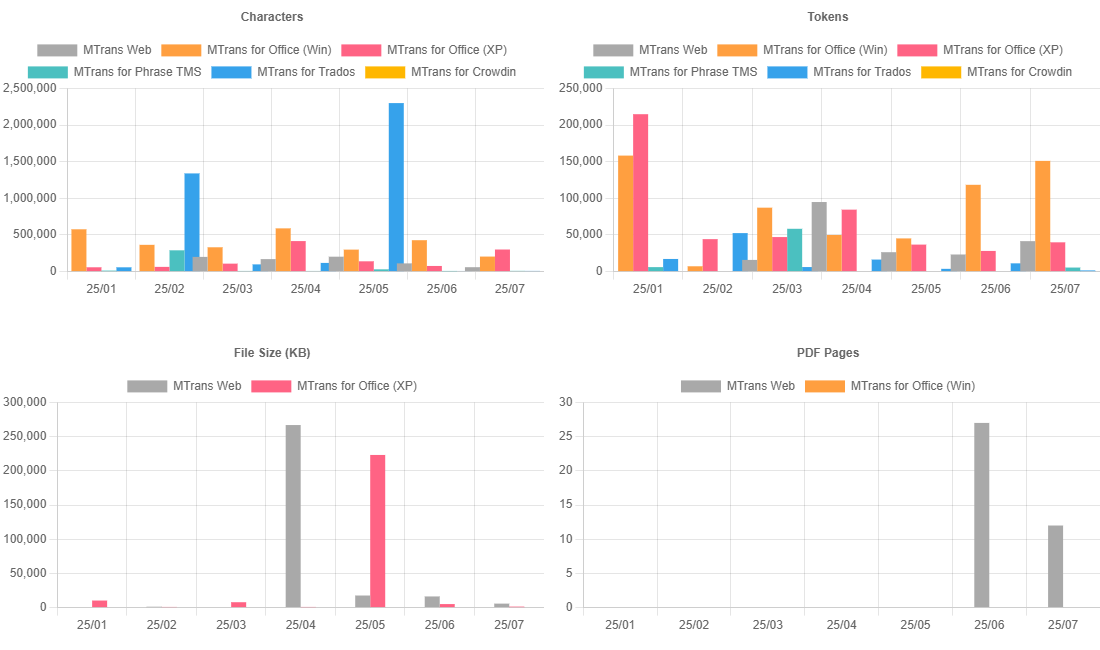
Each graph shows the third-party (MT/LLM/API) usage for the past 6 months from the current date and time since April 2023. File sizes are recorded when translating files (documents) with MTrans Web or MTrans for Office. PDF pages are displayed for the usage after July 2025 in MTrans Web. Adobe document transactions are recorded when the AI proofing function of MTrans for Office (XP version) uses the Adobe Acrobat Services API.
To view third-party (MT/LLM/API) usage in CSV format, set the target period after April 2023 (up to 12 months), then click the "Export" button to download the CSV file. The CSV file contains the following data:
| Column Name | Description |
|---|---|
| User ID | A unique identifier for the user. |
| Name | The name of the user. "N/A" indicates a deleted user. |
| E-mail Address | The e-mail address of the user. "N/A" indicates a deleted user. |
| Product | The name of the MTrans product. |
| Feature | The name of the feature of the MTrans product. For more information, see the "About Features" section below. |
| API | The name of the MT engine, large language model, or third-party API used. |
| Source Language | The language code of the source text. |
| Target Language | The language code of the translated text. |
| Office / File Type | The name of the Office application or the file extension is output. |
| Platform | The environment of the Office application (Windows / Mac / Web) is output. |
| Credential Owner | The owner of the credentials used for the API. "System" is output when the credentials provided as standard with MTrans were used, and "User" is output when your own credentials registered under "Integrations" were used. * "-" is output for the usage before August 31, 2026 and for the usage of MTrans for Office (Windows version). |
| Usage Unit | The unit of the value output as third-party (MT/LLM/API) usage in each year and month column. • Characters • Tokens* • File size (in bytes) • Pages (PDF pages) • Document Transactions * For February 2026 and later, tokens are output as three values: input tokens, output tokens, and total tokens. For January 2026 and earlier, only total tokens are output. |
| Year and Month | The MT usage when translating, the LLM usage when processing text, or the usage when a third-party API was used. |
MTrans for Office (Windows version) does not output the data for "API", "Source Language", "Target Language", "Office / File Type", and "Platform" in the usage before June 2025. Also, in the usage of the DeepL engine of MTrans for Office (Windows version) after August 2025, "Classic Model" and "Next-Generation Language Model" are distinguished. The usage of the Next-Generation Language Model is output as "DeepL Next-Gen".
Please note that this third-party (MT/LLM/API) usage figure is calculated on our proprietary calculation method and may not necessarily match the actual usage counted by MT engines, large language models, and third-party APIs.
About Features
Features are categorized into three levels: Service, Feature, and Individual Feature. "Service" is the top-level category, "Feature" is the middle-level category, and "Individual Feature" is the bottom-level category. Depending on the MTrans product and the year and month of usage, the item name in one of these levels will be output.
| Service | Feature | Individual Feature | MTrans Web | MTrans for Office (XP version) | Other Products |
|---|---|---|---|---|---|
| Machine Translation | - | - | - | 〇 (Usage before June 2025) | 〇 |
| Text Translation | - | 〇 | - | - | |
| Selected Range Translation | - | 〇 (Usage after July 2025) | - | ||
| Sheet Translation | - | - | |||
| Slide Translation | - | - | |||
| Inbox Whole E-mail Translation | - | - | |||
| Draft Whole E-mail Translation | - | - | |||
| File Translation | - | 〇 | 〇 | - | |
| Text Processing | - | - | - | 〇 (Usage before June 2025) | 〇 |
| Automatic Post-Editing | - | 〇 | 〇 (Usage after July 2025) | - | |
| AI Prompt | - | - | - | ||
| AI Proofing | - | - | - |
Web Features
To check the usage history of MTrans Online features (Web Features), click the "Web Features" tab.
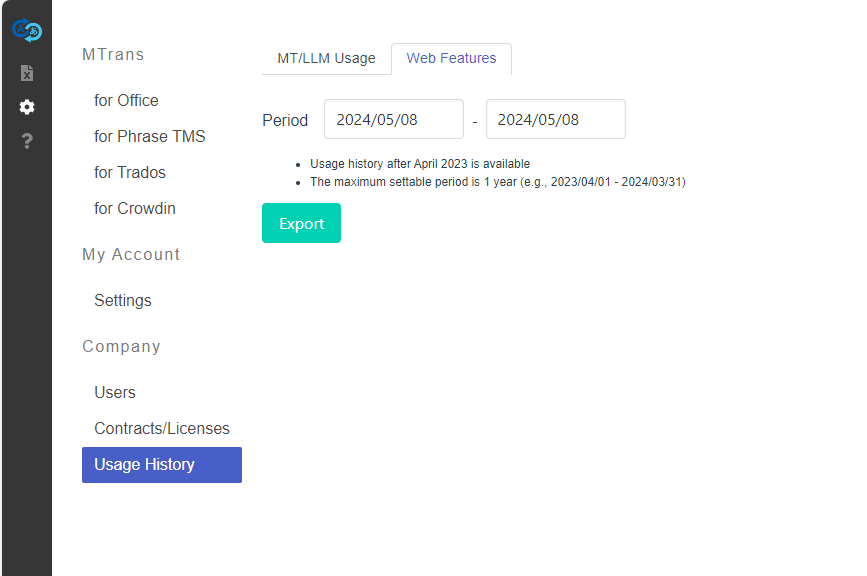
Set the target period after April 2023 (up to 12 months), then click the "Export" button to download the CSV file. The CSV file contains the following data:
- User ID
- Name: "N/A" indicates a deleted user.
- E-mail Address: "N/A" indicates a deleted user.
- Date and Time: Tokyo time (UTC+9) in minutes.
- Feature
- Target User: "N/A" indicates a deleted user.
- Target user group: "N/A" indicates a deleted user group.
- Target glossary: "N/A" indicates a deleted glossary.
Please note that this usage history is not the operation history on the website (https://mtrans.online) but the usage history of our server function. For example, when accessing the "Company" > "User" page, not only the "Read my user list" function but also the "Read my account" function, "Read my user group list" function, and "Read my contract list" function are internally executed and output as MTrans Online features (Web features) usage history. Also, usage histories with the same date and time are output in no particular order.
Integrations
You can register credentials for external services (such as machine translation engines) owned by users or organizations and use them with MTrans products.
The external services that can be registered are as follows:
| Service | Edition |
|---|---|
| Google Cloud Translation API | Basic / Advanced / AutoML |
| DeepL API | Standard / CAT Tool |
| Microsoft Translator | - |
| OpenAI API | - |
| NICT | - |
There are two levels of integration settings: "My Account" and "Company". Credentials registered in "My Account" are personal settings for individual users, while credentials registered in "Company" are common settings for the entire organization. If credentials for the same service and edition are registered at both levels, and the same product is included in their scope, the My Account setting takes precedence for that product.
For example, for a given user, if credentials for "Google" / "Google Advanced" / scope "MTrans Web" are registered in both My Account and Company, when that user uses Google text translation in MTrans Web, the My Account credentials are applied.
My Account > Integrations
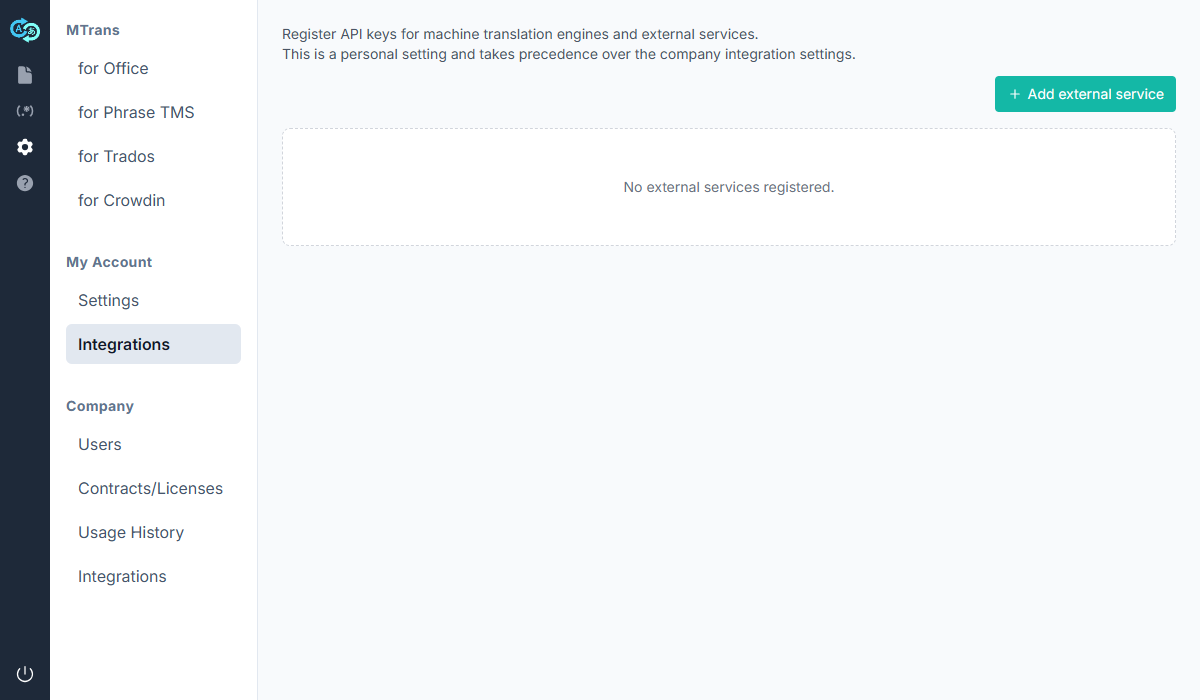
Click (settings icon) in the sidebar, and click "Integrations" under "My Account". The credentials set here are personal settings for the user and take precedence over the Company integration settings.
Company > Integrations
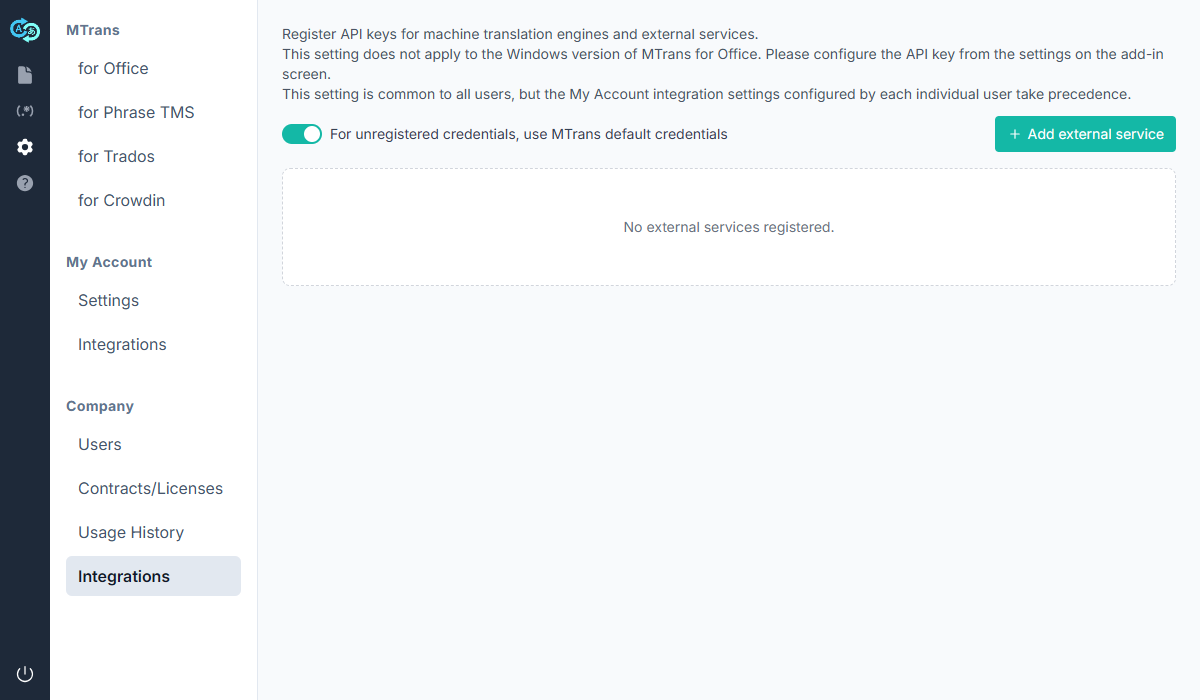
Click (settings icon) in the sidebar, and click "Integrations" under "Company". This feature is available only to data managers. The credentials set here are common settings for all users in the organization, but the integration settings configured by each user in My Account take precedence.
When the "For unregistered credentials, use MTrans default credentials" toggle is turned on, the MTrans default credentials are used for external services that are not registered in the integration settings.
Adding, editing, and deleting an external service
Click the "+ Add External Service" button to open the add dialog. Configure the following items:
- Service: Select the external service to register.
- Edition: Select the API edition to use.
- Scope: Select the MTrans products to which the credentials apply. Selecting "All products" applies them to all supported products.
- Credentials: Enter the credentials (API key, service account key, etc.) corresponding to the selected service.
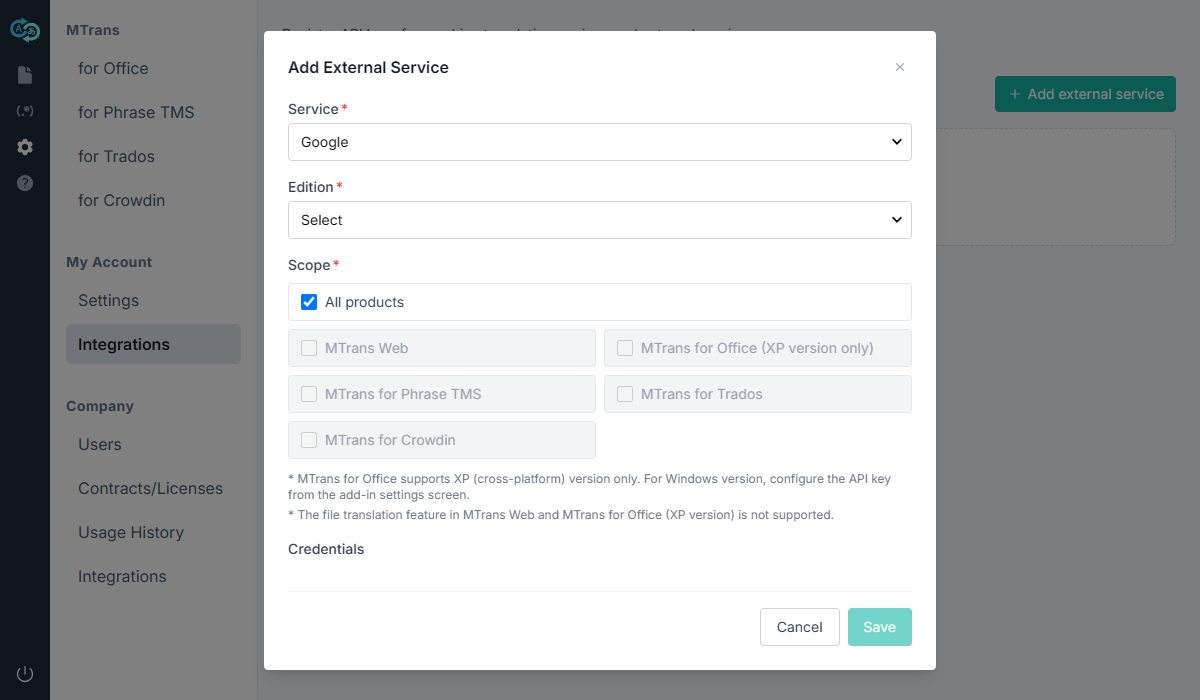
Use the "Edit" or "Delete" button on a registered external service card to change or delete the setting. Note that the service type (service name) cannot be changed when editing.
* MTrans for Office supports XP (cross-platform) version only. For Windows version, configure the API key from the add-in settings screen.
* The file translation feature in MTrans Web and MTrans for Office (XP version) is not supported.
* For MTrans for Trados, the external credentials configured on the for Trados client take precedence over the settings on MTrans Online.
FAQ
I have not received the invitation e-mail, password reset e-mail, or notification e-mail
Please check your spam mailbox as it may have been filtered.
I am asked for a token file when using the MTrans product. Where can I get a token file?
The token file can be downloaded from MTrans Online. Click in the sidebar, click on "Settings" under "My Account" to open the account settings screen, and then click on the "Download" link under "Token".
What information is contained in the token file? Does it contain sensitive information such as passwords?
The token file contains information that identifies the user, but does not contain passwords or other sensitive information.
I cannot use the MTrans product. What is the cause?
Possible reasons are:
- Token file expired: You need to get the latest token file from MTrans Online.
- Outside the contract period: You need to check with your user manager for the availability period.
- License not assigned: You need to check the status of the license assignment with your user manager.
- Account disabled or deleted: You need to check with your user manager.
I want to know more about the term adaptation function
The term adaptation function translates with a user-created glossary to obtain the best possible translation using machine translation. For more information, please refer to the manual of the service you have signed up for or contact our support (mtrans-support@science.co.jp).
A glossary fails to import. The format should be correct, but what is causing it?
In the case of CSV format, look over the list of terms and make sure that the format is not broken in the middle due to line breaks, for example.
Revision history
August 31, 2026
- Added "Third-Party Usage (Standard Credentials)" to "Contract/license management function"
- Updated "MT/LLM Usage" in "Usage History"
- Renamed "MT/LLM Usage" to "Third-Party (MT/LLM/API) Usage"
- Added a description of the "Adobe Document Transactions" graph
- Changed the "MT Engine / LLM" column to the "API" column, added the "Credential Owner" column, and added "Document Transactions" to "Usage Unit" in the CSV
June 17, 2026
- Added "Integrations"
March 3, 2026
- Updated the site images and icons to the renewed version
- Added SSO login instructions from the login page for customers logging in using Single Sign-On (SSO)
February 1, 2026
- Updated "MT/LLM Usage" in "Usage History"
- Added a description of the output format for tokens (January 2026 and earlier vs. February 2026 and later)
November 4, 2025
- Added the "AI proofing rule set" management function to Prompt and replacement condition set management function
See more past history
August 1, 2025
- Changed the name of the user privilege "User Manager" to "Data Manager"
- Updated MT/LLM Usage
- Updated the description as MTrans for Office (Windows version) usage is now output
- Updated the image of the MT/LLM usage graph
June 27, 2025
- Updated the description of "MT/LLM Usage" in "Usage History"
- Added the description of "Pages"
- Added the description of "Office / File Type" when using MTrans Web
- Changed the description of the items output in CSV to a table format
- Added "About Features"
June 2, 2025
- Changed "MTrans for Office (Mac/Web version)" to "MTrans for Office (XP version)"
April 28, 2025
- Added "Automatic post-edit function" and "OpenAI option" to "Translation function (MTrans Web)"
April 10, 2025
- Added "File translation function" to "Translation function (MTrans Web)"
March 31, 2025
March 4, 2025
- Changed the period to display in the graph of MT/LLM Usage from the past 12 months to the past 6 months
December 20, 2024
- Changed "MT prompt set / auto post-editing condition set management function" to MT prompt set / auto post-editing condition set / AI prompt set management functions
October 21, 2024
- Changed "Prompt and replacement condition set management function" to MT prompt set / auto post-editing condition set management functions
July 25, 2024
- Added that users other than data managers can create and edit private glossaries in "Glossary management function"
- Added that users other than data managers can create and edit private "prompt and replacement condition" sets in "Prompt and replacement condition set management function"
June 25, 2024
May 8, 2024
- Changed "MT Usage" to "MT/LLM Usage"
July 20, 2023
- Improved the description of the proper noun in "Set the part of speech" of the glossary management function
June 6, 2023
- Added tokens to MT usage
April 1, 2023
- Added Usage History
March 2, 2023
- Added MTrans for Crowdin page
February 23, 2023
- Changed the content regarding the order in which language columns are displayed in the "Set the language to display" section of the glossary management function.
February 20, 2023
- Added an FAQ on importing glossaries
December 13, 2022
September 2022
- Product name changed from MTrans for Memsource to MTrans for Phrase TMS
August 2022
- Added "User privileges"
- Added "User group management function"
- Added "My user group(s)" to "My Account Settings"
- Added "About the contract"
- Deleted the glossary group function
- Added "About the glossary list view"
- Added "Control access to a glossary"
- Added the access setting to "Create a glossary"
- Added the access setting to "Import a glossary file" > "When importing into a new glossary"